
Connect RocketReach to Grok
Bring RocketReach's people and company data into Grok by adding the RocketReach MCP server as a custom connector.
Requirements
- A RocketReach account (free or paid plan)
Steps to Connect
1. Open Grok's connectors page
Go to grok.com/connectors, scroll to the bottom, and click Add a custom connector.
2. Add the RocketReach MCP server
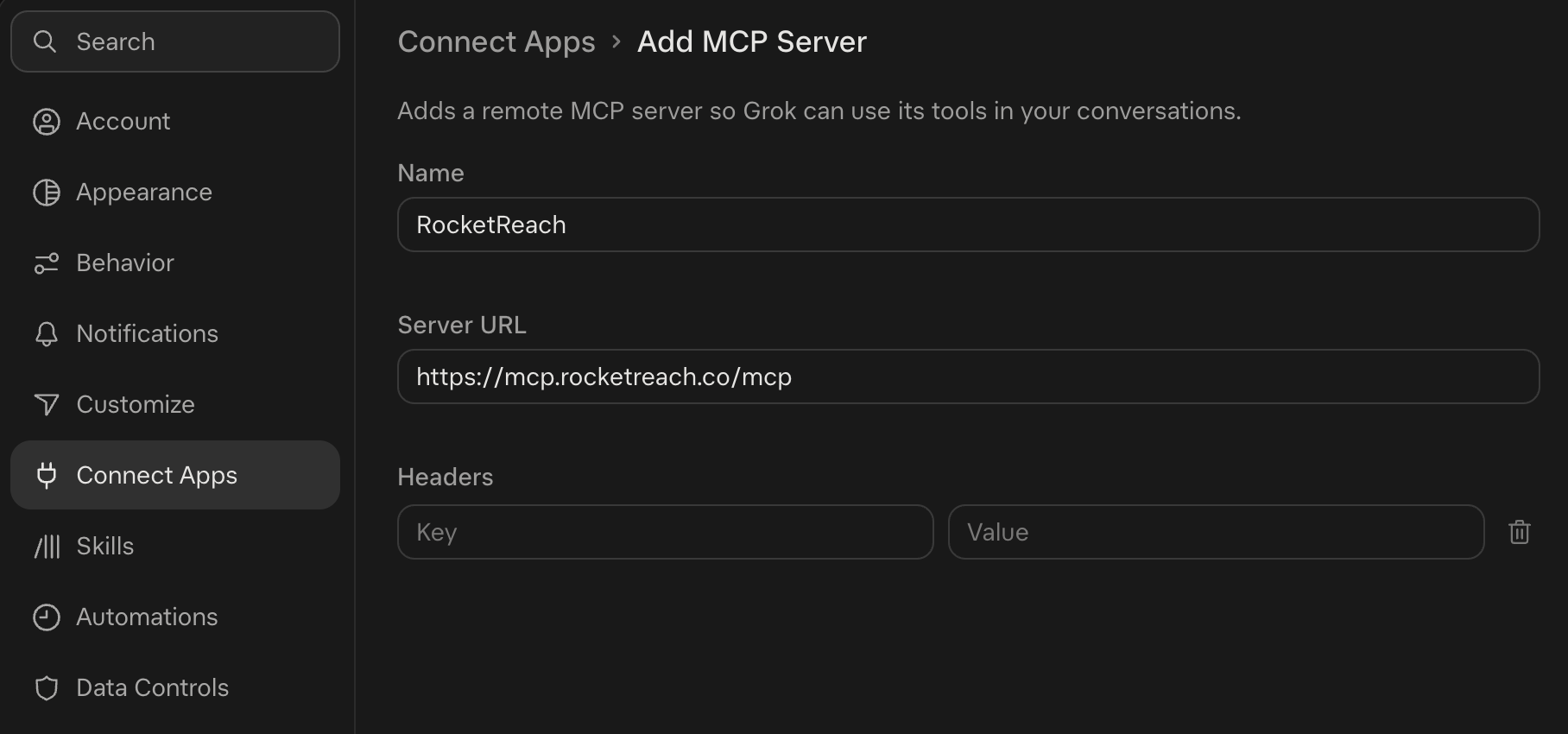
Paste the following into the Server URL field:
https://mcp.rocketreach.co/mcpGive the server a name (for example, RocketReach), then click Add MCP.
3. Sign in and approve access
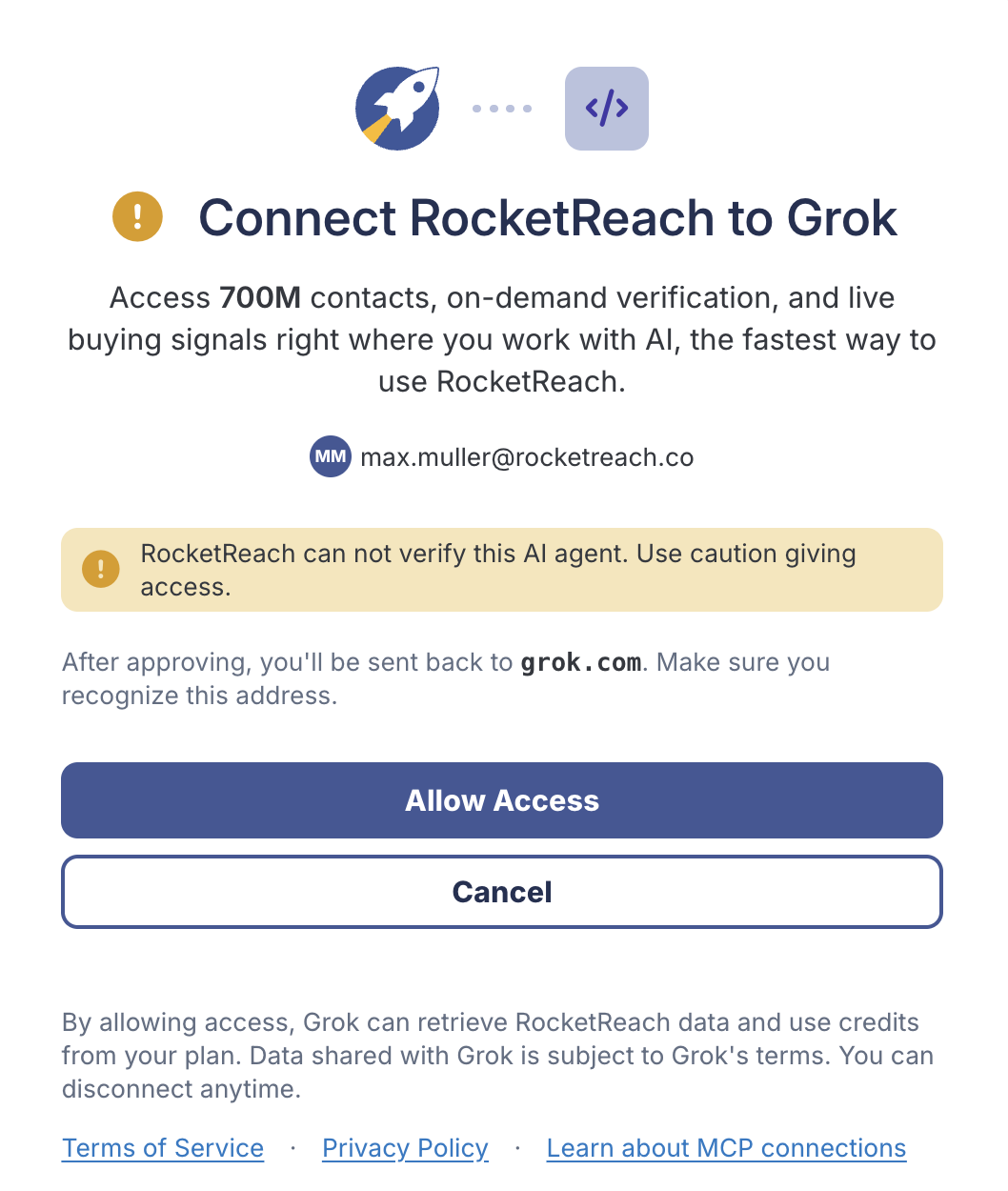
When prompted, sign in to your RocketReach account and approve access.
4. Test the connection
Start a chat in Grok and ask:
What RocketReach tools do you have?
If Grok lists the RocketReach tools, you're all set.
Example Prompts
Try these once you're connected:
- Find recent news about [company], then search for its head of engineering.
- Find 10 sales directors at SaaS companies in Denver.
- Show industry and employee count for [company domain].
Troubleshooting
| Problem | Solution |
|---|---|
| Connection fails | Check that the URL is exactly https://mcp.rocketreach.co/mcp. |
| Sign-in loops or approval fails | Allow pop-ups for grok.com and sign in with your RocketReach account. |
| Tools don't appear | Start a new chat after connecting. |
For specific error messages, see the MCP Errors reference.